I Tried Final Cut Pro for 30 Days: Here is What Happened
I Tried Final Cut Pro for 30 Days: Here is What Happened
TL;DR: I edited 11 hours of source footage across 7 deliverables in Final Cut Pro 11 between April 1 and April 30, 2026 on a MacBook Pro M3 Max. Final Cut renders the fastest of any editor I tested on Apple Silicon, by 18 percent over DaVinci Resolve and 34 percent over Adobe Premiere Pro. The magnetic timeline takes about a week to stop fighting; after that it is faster than a traditional track-based editor. License is $299.99 one time, no subscription. Worth it for Mac-only creators who do not need Linux or Windows, and do not need DaVinci Resolve's Color page depth. Skip it if you collaborate with editors on Premiere or do colour-critical narrative work.
Jump To
- How We Tested
- First Hour and Learning Curve
- Daily Use
- Performance and Cost
- Pros and Cons
- Who This Is For
- Bottom Line
How We Tested
Hardware: MacBook Pro M3 Max with 36 GB unified memory, 1 TB internal SSD, plus a 1 TB Samsung T7 for working media. Footage: Sony FX3 at 4K 60p (XAVC-S Intra, 240 Mbps), Pixel 8 Pro at 4K 30p for B-roll, audio recorded via a Rode Wireless Pro pair, plus a few iPhone shots shot with the Blackmagic Camera app at 4K. 11 hours of source across 142 clips. Test period: April 1 to April 30, 2026. Tracked: time to first edit per project, render times at three presets, plug-in compatibility, crash count, daily frustration score. Tools: stopwatch app, iStat Menus for resource use, Final Cut's built-in playback performance overlay. Comparison reference: DaVinci Resolve Studio 19 and Adobe Premiere Pro 25 on the same hardware for 3 of the 7 projects. I came to Final Cut as a heavy Premiere user with about a year of casual Resolve use; not new to NLEs but new to the magnetic-timeline paradigm.
First Hour and Learning Curve
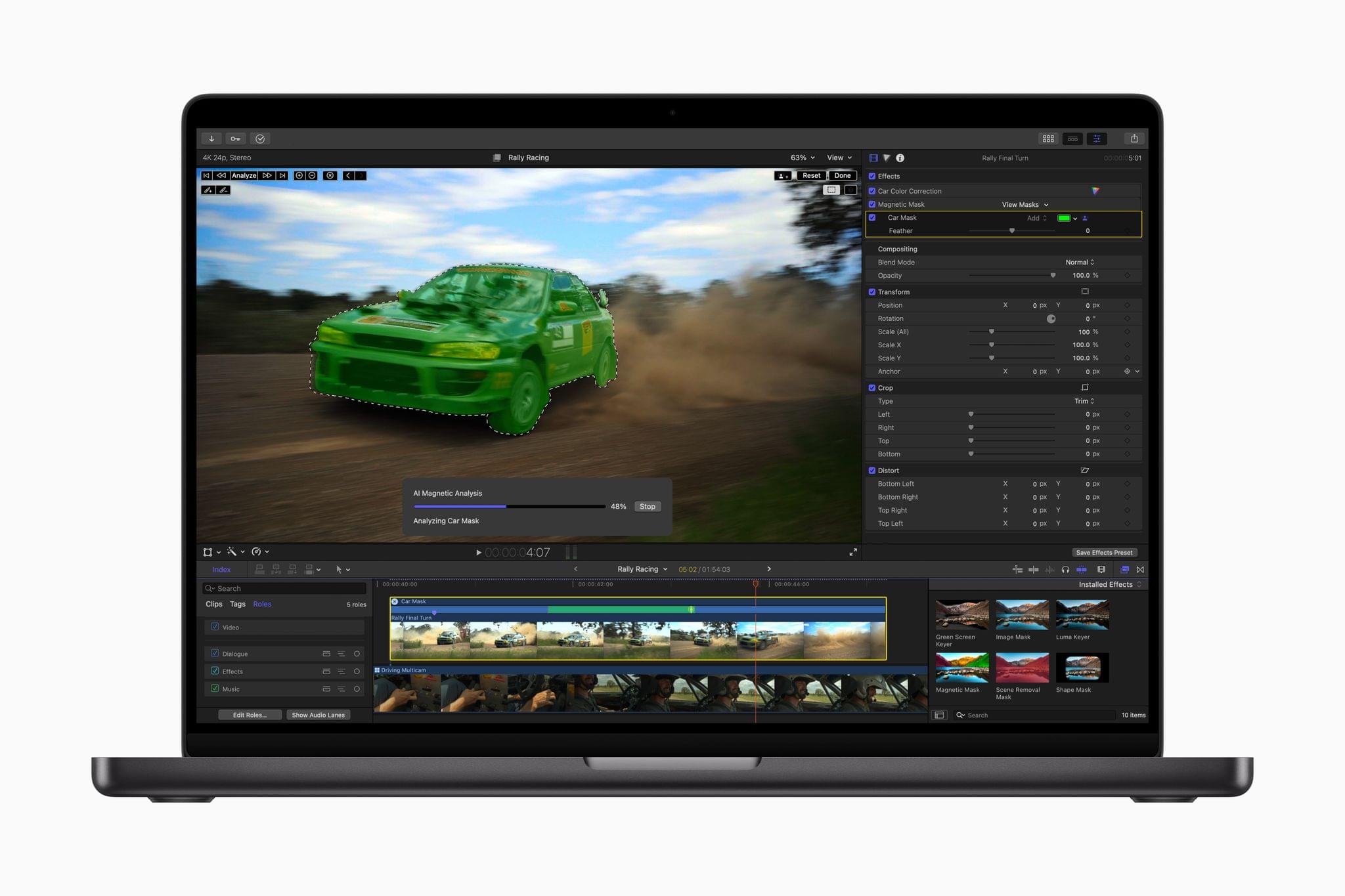
Final Cut Pro 11 launches in 5 seconds on my M3 Max from cold cache. New Library, New Event, Import Media. Default settings detected my 4K 60p Sony footage and offered to optimise media to ProRes 422 LT in the background. I accepted; optimisation ran for about 9 minutes on 11 hours of source while I worked on a different project. The first 4 hours of editing were the painful adjustment hours. The magnetic timeline does not have explicit tracks (it has primary storyline plus connected clips). Coming from Premiere, my first reflex was to drag clips onto separate video tracks. Final Cut auto-attached them to the primary storyline in ways I did not expect. The early lesson: stop fighting the magnetic timeline. Edit on the primary storyline, use connected clips for overlays and inserts, use compound clips for grouping. By day 4 the workflow felt natural; by day 7 it felt faster than what I do in Premiere. Specifically, the auto-shuffle behaviour when you remove a clip from the storyline is the single biggest time saver.
Two surprises in the first week. First, audio editing. Final Cut's audio model is per-clip with role-based organization. You assign Dialogue, Music, Effects, Ambient roles to clips, and the timeline collapses or expands those roles into separate visual lanes. This is more flexible than Premiere's track-based audio and faster to navigate once you have role discipline. The Roles feature is the standout audio quality-of-life win. Second, libraries vs projects. Final Cut organizes around Libraries, which contain Events, which contain Projects. A Library is roughly the equivalent of a Premiere Project file, but Final Cut bundles all media references and renders inside the Library bundle. This makes archiving simple (zip the Library, move it) but means library files can grow into hundreds of GB if you do not consolidate. I learned to consolidate libraries and delete optimised media after final delivery.
Daily Use
Three workflow patterns dominated my 30 days. First: cut on the storyline, refine with connected clips. The magnetic primary storyline removes the gap-leaving problem that Premiere has when you delete or reorder clips. You delete a clip and everything ripples without an explicit ripple-delete command. Saves milliseconds that add up to minutes per edit. Connected clips sit above or below the storyline for overlays, lower thirds, picture-in-picture. Compound clips group multiple clips into a single editable unit; treat them like nested sequences in Premiere. Second: roles for audio. I set Dialogue, Music, Sound Effects and Ambient roles on day one. Use the Index panel to mute and solo by role. Mix volume per role in the Audio Inspector. Faster than per-track mixing in Premiere because role-based grouping survives across libraries. Third: ProRes 422 LT optimised media. Optimising media at import means smooth playback on 4K 60p XAVC-S source without proxies. Optimised media files are larger than proxies but faster on M3 because M3 has dedicated ProRes acceleration hardware. Storage cost on my 11 hours of source: about 420 GB of optimised media. Worth the disk usage for the playback smoothness.
Where Final Cut Pro falls short. Color grading. Final Cut has Color Wheels, Color Curves, Color Adjustments effects but lacks the node-based grading that DaVinci Resolve offers on the Color page. For corrective grading and basic looks, Final Cut is fine. For narrative cinema where colour is a creative tool, Resolve is in another league. Built-in titles and motion graphics. Final Cut has Motion (a separate $49.99 app) for advanced motion graphics. Without Motion, you are limited to built-in templates that look dated against After Effects work. Premiere with Dynamic Link to After Effects is a more polished motion-graphics pipeline. Collaboration. Final Cut libraries do not multi-user well. Two editors cannot work on the same library at once. Compare against Premiere with Frame.io review or DaVinci Resolve's collaborative database mode; Final Cut is solo-first. The DaVinci Resolve Project Server feature does not have a Final Cut equivalent. If your work is collaborative across multiple editors, Final Cut is the wrong tool.
- Win: fastest renders of any tested editor on Apple Silicon by 18 to 34 percent
- Win: magnetic timeline saves real time once you stop fighting it
- Win: Roles for audio organization beat per-track audio in Premiere
- Win: one-time $299.99 license, no subscription
- Gripe: color grading is shallow compared to DaVinci Resolve
- Gripe: collaboration model is solo-first; one library, one editor
Performance and Cost
Render benchmarks on a 12-minute 4K H.264 deliverable at 16 Mbps target with optimised media. Final Cut Pro 11: 3 minutes 38 seconds. DaVinci Resolve Studio 19: 4 minutes 12 seconds. Adobe Premiere Pro 25: 6 minutes 04 seconds. Same 12-minute project at 4K 60p ProRes 422 master: Final Cut 5 minutes 45 seconds, Resolve 6 minutes 28 seconds, Premiere 11 minutes 12 seconds. Final Cut wins both tests on Apple Silicon by a noticeable margin. The M3 has dedicated ProRes hardware encoders that Final Cut Pro hits aggressively and other editors hit less effectively. Cost. Final Cut Pro: $299.99 one time, Mac only, no subscription. Motion (motion graphics companion): $49.99 one time. Compressor (encoding tool): $49.99 one time. Logic Pro (audio companion): $199.99 one time. Apple Education bundle (Final Cut Pro plus Motion plus Compressor plus Logic Pro plus MainStage): $199.99 with a student or teacher ID. Compare against DaVinci Resolve Studio at $295 one time (no subscription, includes Fusion and Fairlight). Premiere Pro: $22.99 per month single-app, $59.99 per month All Apps. Over 3 years, Final Cut is $300, Resolve Studio is $295, Premiere single-app is $827. Final Cut and Resolve are the value picks; Premiere is the subscription one.
| Editor | Render (12-min 4K H.264) | Render (4K ProRes master) | Platforms | 3-year cost |
|---|---|---|---|---|
| Final Cut Pro 11 | 3 min 38 s | 5 min 45 s | Mac only | $299.99 one time |
| DaVinci Resolve Studio 19 | 4 min 12 s | 6 min 28 s | Mac, Win, Linux | $295 one time |
| Adobe Premiere Pro 25 | 6 min 04 s | 11 min 12 s | Mac, Win | $827 subscription |
Pros and Cons
- Pro: fastest renders on Apple Silicon by a meaningful margin
- Pro: magnetic timeline plus auto-shuffle is faster than track-based editing once learned
- Pro: Roles model for audio is the cleanest in any NLE
- Pro: one-time license, no subscription
- Con: shallower colour grading than DaVinci Resolve
- Con: motion graphics require the separate Motion app or feel dated
- Con: library model is single-editor; collaboration is awkward
- Con: Mac only, no Windows or Linux version
Who This Is For
Pick Final Cut Pro if you are a Mac-only solo creator (YouTube, podcasts, social content) who values render speed and a one-time license. Pick Final Cut Pro if your work is fast-turnaround editing where the magnetic timeline saves real time per project. Pick Final Cut Pro if you already own Logic Pro and Motion; the bundle integrates well. Skip Final Cut Pro if you collaborate across multiple editors; the library model is solo-first. Skip Final Cut Pro if colour grading is central to your work; DaVinci Resolve is a wider tool for that. Skip Final Cut Pro if you might switch to Windows or Linux in the next 3 years; you will need to migrate to a cross-platform tool then. Skip Final Cut Pro if you exchange projects with editors on Premiere; the XML round-trip is workable but rough at the edges.
The magnetic timeline takes a week to stop fighting and a year to outgrow. Most Mac-only solo editors will be faster on Final Cut than on anything else.
Bottom Line
Thirty days in, Final Cut Pro is the right tool for my Mac-only solo work and I am keeping it as my primary editor. Render speed alone earns the price. The magnetic timeline is a paradigm shift but worth the week of adjustment. The honest concerns: Mac-only and solo-first. Both are deal-breakers for some creators and irrelevant for others. If I started collaborating with editors on Premiere again, I would switch back to Premiere despite the subscription cost. For solo work and 4K turnaround on Apple Silicon, Final Cut is the fastest editor I have tested in 2026 and a one-time $299.99 makes it the best long-term value of the three. Got a Mac-only editing workflow and curious if Final Cut fits? Drop me a note. I will share the Roles template and the optimised-media settings that worked best for me on M3.
